DealMaker API (1.75.0)
Welcome to DealMaker’s Web API v1! This API is RESTful, easy to integrate with, and offers support in 2 different languages. This is the technical documentation for our API. There are tutorials and examples of integrations with our API available on our knowledge centre as well.
To authenticate, add an Authorization header to your API request that contains an access token. Before you generate an access token your must first create an application on your portal and retrieve the your client ID and secret
DealMaker’s Web API v1 supports the use of OAuth applications. Applications can be generated in your account.
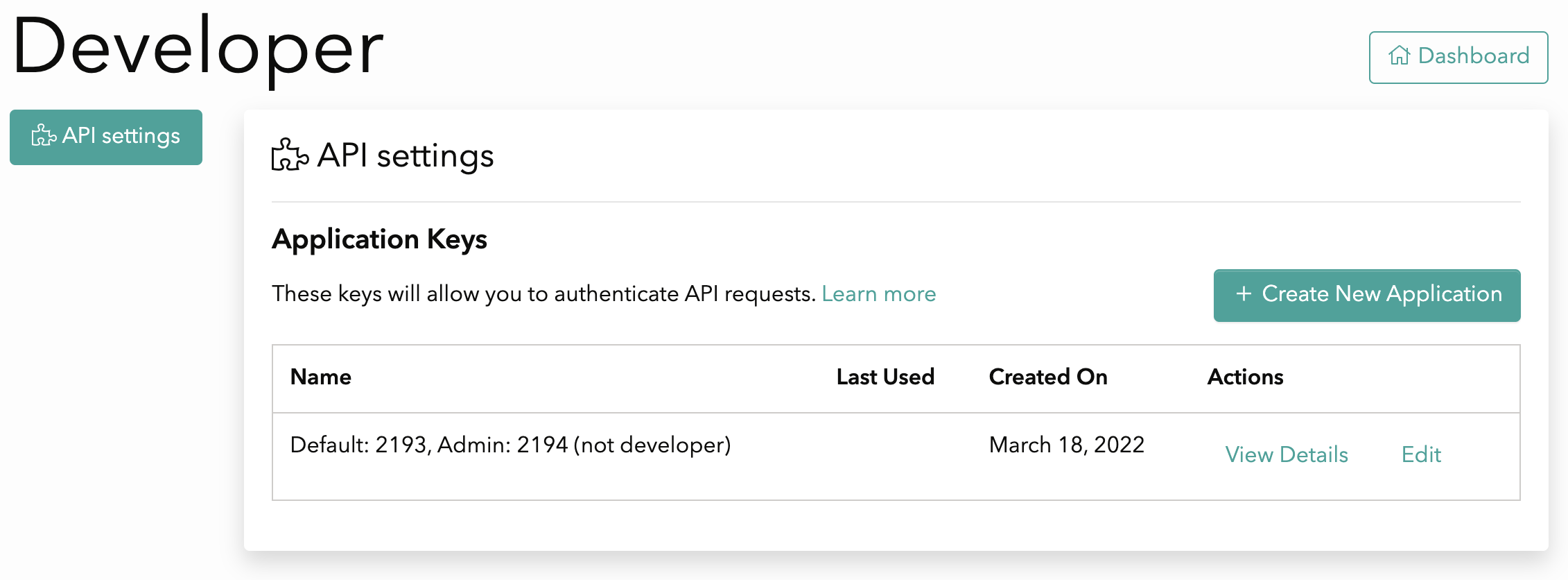
To create an API Application, click on your user name in the top right corner to open a dropdown menu, and select "Integrations". Under the API settings tab, click the Create New Application button
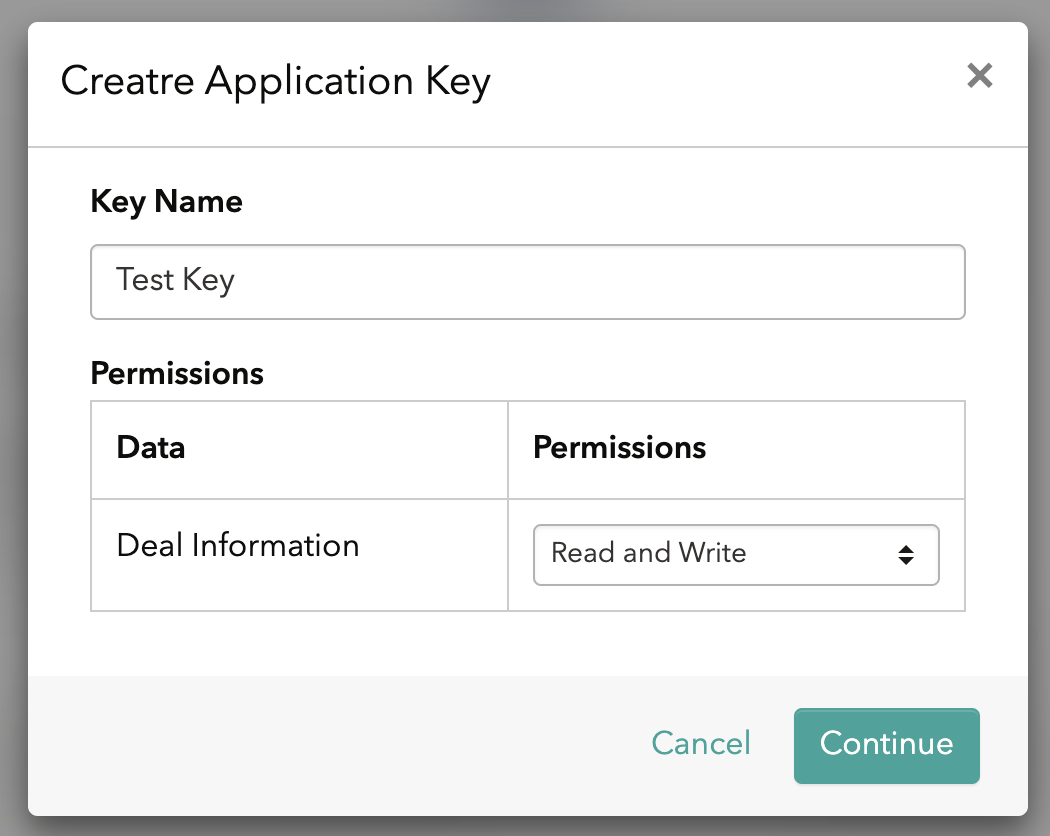
Name your application and assign the level of permissions for this application
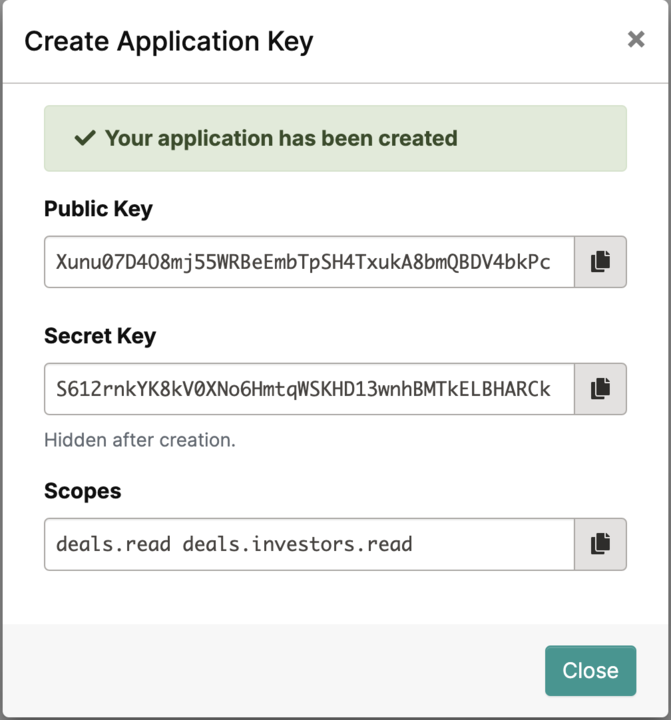
Once your application is created, save in a secure space your client ID and secret.
WARNING: The secret key will not be visible after you click the close button
From the developer tab, you will be able to view and manage all the available applications
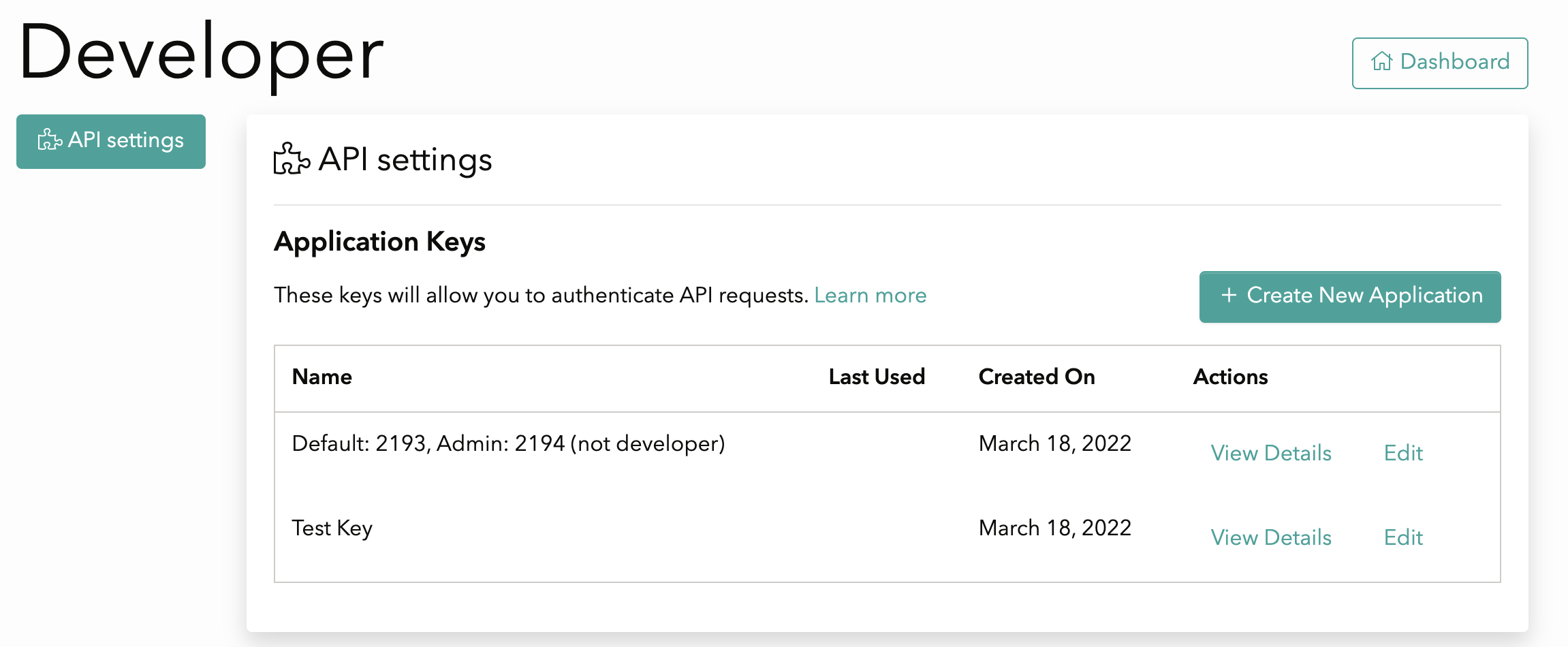
Each Application consists of a client id, secret and set of scopes. The scopes define what resources you want to have access to. The client ID and secret are used to generate an access token. You will need to create an application to use API endpoints.
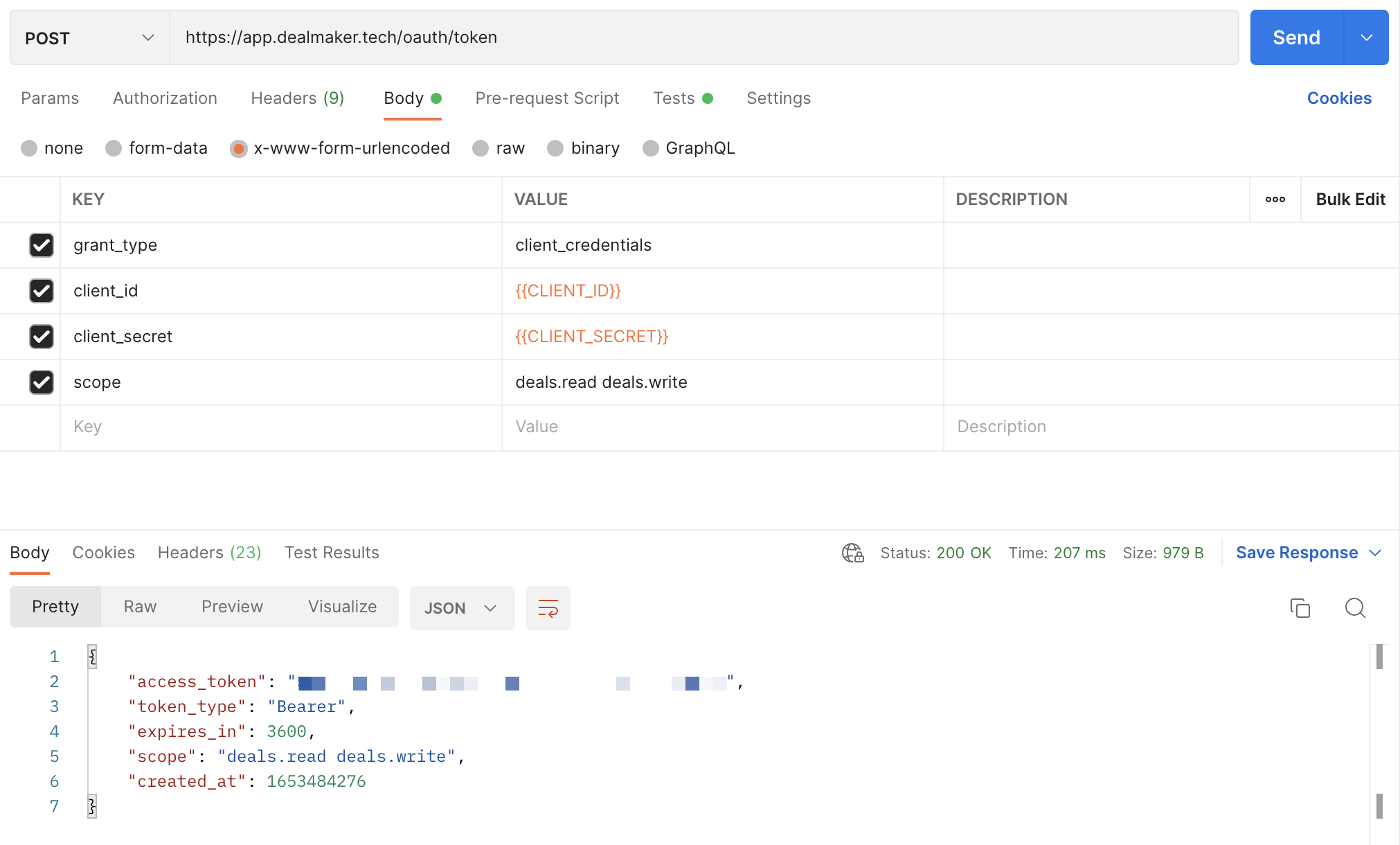
After creating an application, you must make a call to obtain a bearer token using the Generate an OAuth token operation. This operation requires the following parameters:
token endpoint - https://app.dealmaker.tech/oauth/token
grant_type - must be set to client_credentials
client_id - the Client ID displayed when you created the OAuth application in the previous step
client_secret - the Client Secret displayed when you created the OAuth application in the previous step
scope - the scope is established when you created the OAuth application in the previous step
Note: The Generate an OAuth token response specifies how long the bearer token is valid for. You should reuse the bearer token until it is expired. When the token is expired, call Generate an OAuth token again to generate a new one.
To use the access token, you must set a plain text header named Authorization with the contents of the header being “Bearer XXX” where XXX is your generated access token.
Here's an example on how to generate the access token with Postman, where {{CLIENT_ID}} and {{CLIENT_SECRET}} are the values generated after following the steps on Create an Application
Below is a table containing descriptions of the various status codes we currently support against various resources.
Sometimes your API call will generate an error. Here you will find additional information about what to expect if you don’t format your request properly, or we fail to properly process your request.
| Status Code | Description |
|---|---|
200 | Success |
403 | Forbidden |
404 | Not found |
Pagination is used to divide large responses is smaller portions (pages). By default, all endpoints return a maximum of 25 records per page. You can change the number of records on a per request basis by passing a per_page parameter in the request header parameters. The largest supported per_page parameter is 100.
When the response exceeds the per_page parameter, you can paginate through the records by increasing the offset parameter. Example: offset=25 will return 25 records starting from 26th record. You may also paginate using the page parameter to indicate the page number you would like to show on the response.
Please review the table below for the input parameters
| Response Header | Description |
|---|---|
X-Total | Total number of records of response |
X-Total-Pages | Total number of pages of response |
X-Per-Page | Total number of records per page of response |
X-Page | Number of current page |
X-Next-Page | Number of next page |
X-Prev-Page | Number of previous page |
X-Offset | Total number of records offset |
The q optional parameter accepts a string as input and allows you to filter the request based on that string. Please note that search strings must be encoded according to ASCII. For example, "[email protected]" should be passed as “john%2Binvestor%40dealmaker.tech”. There are two main ways to filter with it.
Some keywords allow you to filter investors based on a specific “scope” of the investors, for example using the string “Invited” will filter all investors with the status invited, and the keyword “Has attachments” will filter investors with attachments.
Here’s a list of possible keywords and the “scope” each one of the keywords filters by:
| Keywords | Scope | Decoded Example | Encoded Example |
|---|---|---|---|
| Signed on (date range) | Investors who signed in the provided date range | Signed on (date range) [2020-07-01:2020-07-31] | Signed%20on%20%28date%20range%29%20%5B2020-07-01%3A2020-07-31%5D |
| Enabled for countersignature on (date range) | Investors who were enabled for counter signature in the provided date range | Enabled for countersignature on (date range) [2022-05-24:2022-05-25] | Enabled%20for%20countersignature%20on%20(date%20range)%20%5B2022-05-24%3A2022-05-25%5D |
| Accepted on (date range) | Investors accepted in the provided date rage | Accepted on (date range) [2022-05-24:2022-05-25] | Accepted%20on%20(date%20range)%20%5B2022-05-24%3A2022-05-25%5D |
| Offline | Investors added to the deal offline | Offline | Offline |
| Online | Investors added to the deal online | Online | Online |
| Signed | Investors who signed their agreement | Signed | Signed |
| Waiting for countersignature | Investors who have signed and are waiting for counter signature | Waiting for countersignature | Waiting%20for%20countersignature |
| Invited | Investors on the Invited Status | Invited | Invited |
| Accepted | Investors in the Accepted Status | Accepted | Accepted |
| Questionnaire in progress | All Investors who have not finished completing the questionnaire | Questionnaire in progress | Questionnaire%20in%20progress |
| Has attachments | All Investors with attachments | Has attachments | Has%20attachments |
| Has notes | All Investors with notes | Has notes | Has%20notes |
| Waiting for co-signature | Investors who have signed and are waiting for co-signature | Waiting for co-signature | Waiting%20for%20co-signature |
| Background Check Approved | Investors with approved background check | Background Check Approved | Background%20Check%20Approved |
| Document Review Pending | Investors with pending review | Document Review Pending | Document%20Review%20Pending |
| Document Upload Pending | Investors with pending documents to upload | Document Upload Pending | Document%20Upload%20Pending |
| Required adjudicator review | Investors who are required to be review by the adjudicator | Required adjudicator review | Required%20adjudicator%20review |
NOTE
Filtering keywords are case sensitive and need to be encoded
Any value for the parameter which does not match one of the keywords listed above, will use fields like first name, last name, email, tags to search for the investor.
For example, if you search “Robert”, because this does not match one of the keywords listed above, it will then return any investors who have the string “Robert” in their name, email, or tags fields.
The latest version is v1.
The version can be updated on the Accept header, just set the version as stated on the following example:
Accept:application/vnd.dealmaker-v1+json
| Version | Accept Header |
|---|---|
v1 | application/vnd.dealmaker-v1+json |
Our webhooks functionality allows clients to automatically receive updates on a deal's investor data.
Some of the data that the webhooks include:
- Investor Name
- Date created
- Phone
- Allocation
- Attachments
- Accredited investor status
- Accredited investor category
- State (Draft, Invited, Signed, Accepted, Waiting, Inactive)
Via webhooks clients can subscribe to the following events as they happen on Dealmaker:
- Investor is created
- Investor details are updated (any of the investor details above change or are updated)
- Investor has signed their agreement
- Invertor fully funded their investment
- Investor has been accepted
- Investor is deleted
A URL supplied by the client will receive all the events with the information as part of the payload. Clients are able to add and update the URL within DealMaker.
For a comprehensive guide on how to configure Webhooks please visit our support article: Configuring Webhooks on DealMaker – DealMaker Support.
As a developer user on DealMaker, you are able to configure webhooks by following the steps below:
- Sign into Dealmaker
- Go to “Your profile” in the top right corner
- Access an “Integrations” configuration via the left menu
- The developer configures webhooks by including:
- The HTTPS URL where the request will be sent
- Optionally, a security token that we would use to build a SHA1 hash that would be included in the request headers. The name of the header is
X-DealMaker-Signature. If the secret is not specified, the hash won’t be included in the headers. - The Deal(s) to include in the webhook subscription
- An email address that will be used to notify about errors.
- The developers can disable webhooks temporarily if needed
The initial set of events will be related to the investor. The events are:
investor.create- Triggers every time a new investor is added to a deal
investor.update- Triggers on updates to any of the following fields:
- Status
- Name
- Email - (this is a user field so we trigger event for all investors with webhook subscription)
- Allocated Amount
- Investment Amount
- Accredited investor fields
- Adding or removing attachments
- Tags
- When the investor status is signed, the payload also includes a link to the signed document; the link expires after 30 minutes
- Triggers on updates to any of the following fields:
investor.signed- Triggers when the investor signs their subscription agreement (terms and conditions)
- When this happens the investor.state becomes
signed
- When this happens the investor.state becomes
- This event includes the same fields as the
investor.updateevent
- Triggers when the investor signs their subscription agreement (terms and conditions)
investor.funded- Triggers when the investor becomes fully funded
- This happens when the investor.funded_state becomes
funded
- This happens when the investor.funded_state becomes
- This event includes the same fields as the
investor.updateevent
- Triggers when the investor becomes fully funded
investor.accepted- Triggers when the investor is countersigned
- When this happens the investor.state becomes
accepted
- When this happens the investor.state becomes
- This event includes the same fields as the
investor.updateevent
- Triggers when the investor is countersigned
investor.delete
- Triggers when the investor is removed from the deal
- Special case: Unlike other events, the investor object in the payload only includes
idandemailfields (not the full investor object) - The deal is not included in the payload. Due to our implementation it’s impossible to retrieve the deal the investor was part of
- The request is a
POST - The payload’s
content-typeisapplication/json - Only
2XXresponses are considered successful. In the event of a different response, we consider it failed and queue the event for retry - We retry the request seven times after the initial attempt, for eight attempts in total, doubling the waiting time with each try. The waits are up to 1 minute, then 2, 4, 8, 16 and 32 minutes, and 1 hour, and each wait is at least half of that amount so retries are spread out. This timing scheme gives the receiver between 1 and 2 hours to recover if all the requests fail
- If an event fails all the attempts to be delivered, we send an email to the address that the user configured
There will be some properties that are common to all the events on the system.
| Key | Type | Description |
|---|---|---|
| event | String | The event that triggered the call |
| event_id | String | A unique identifier for the event |
| deal* | Object | The deal in which the event occurred. please see below for an example on the deal object** |
*This field is not included when deleting a resource
** Sample Deal Object in the webhook payload
"deal": {
        "id": 0,
        "title": "string",
        "created_at": "2022-12-06T18:14:44.000Z",
        "updated_at": "2022-12-08T12:46:48.000Z",
        "state": "string",
        "currency": "string",
        "security_type": "string",
        "price_per_security": 0.00,
        "deal_type": "string",
        "minimum_investment": 0,
        "maximum_investment": 0,
        "issuer": {
            "id": 0,
            "name": "string"
        },
        "enterprise": {
            "id": 0,
            "name": "string"
        }
    }
The webhook payload includes investor-related fields similar to those in the Investor model, but there are important differences. The webhook uses a specialized serializer that includes the following properties:
Note: While the API entity and webhook payload share similar data, they use different property names in some cases:
| Webhook Property | API Entity Property | Description |
|---|---|---|
full_name | name | The investor's full name |
investment_amount | investment_value | The investment amount (float) |
user_id | user (object) | Webhook includes only the user ID, not the full user object |
promotional_marketing_consent | N/A | Only included in webhook payloads |
promotional_marketing_consent_opt_in_date | N/A | Only included in webhook payloads |
Webhook-specific properties not in API entity:
first_name- The investor's first namelast_name- The investor's last name
API entity properties not in webhook:
investor_profile- Full investor profile object
The investor object in webhook payloads contains the following properties:
| Property | Type | Description |
|---|---|---|
id | Integer | Investor ID |
full_name | String | The investor's full name (uses name in API) |
first_name | String | The investor's first name |
last_name | String | The investor's last name |
state | String | The investor state (draft, invited, signed, waiting, accepted, inactive) |
email | String | The investor's email address |
investment_amount | Float | The investment amount (uses investment_value in API) |
allocated_amount | Float | The allocated amount |
created_at | DateTime | When the investor was created |
updated_at | DateTime | When the investor was last updated |
phone_number | String | The investor's phone number |
subscription_agreement | Object/Null | Subscription agreement with id and url properties |
accredited_investor | Object | Accredited investor information with ca and us nested objects |
funding_state | String | The funding state (unfunded, funded, overfunded) |
funds_pending | Boolean | Whether funds are pending |
tags | Array | Array of tag names (strings) |
allocation_unit | String | The allocation unit (securities, amount) |
beneficial_address | String | The beneficial address |
investor_currency | String | The investor's currency |
number_of_securities | Integer | Number of securities |
user_id | Integer | The associated user ID (webhook only includes ID, not full object) |
access_link | String | OTP access link for the investor |
warrant_expiry_date | DateTime/Null | Warrant expiry date |
warrant_certificate_number | String/Null | Warrant certificate number |
funds_value | Float | The current funded amount |
verification_status | String/Null | 506c verification status |
background_check_tags | Array | Deprecated: no longer updated. Array of background check tag symbols |
background_check_searches | Array | Array of background check search objects |
attachments | Array | Array of attachment objects with id, created_at, updated_at, and url |
checkout_state | String | Current checkout state |
promotional_marketing_consent | Boolean | Whether promotional marketing consent is granted |
promotional_marketing_consent_opt_in_date | DateTime/Null | When promotional marketing consent was granted |
Example investor payload structure:
{
  "event": "investor.create",
  "event_id": "unique-event-id",
  "deal": {
    "id": 123,
    "title": "Example Deal",
    "created_at": "2024-01-01T00:00:00.000Z",
    "updated_at": "2024-01-01T00:00:00.000Z",
    "state": "active",
    "currency": "USD",
    "security_type": "Common Stock",
    "price_per_security": 10.0,
    "deal_type": "reg_cf",
    "minimum_investment": 100,
    "maximum_investment": 100000,
    "issuer": {
      "id": 456,
      "name": "Example Issuer Inc."
    },
    "enterprise": {
      "id": 789,
      "name": "Example Enterprise"
    }
  },
  "investor": {
    "id": 456,
    "full_name": "John Doe",
    "first_name": "John",
    "last_name": "Doe",
    "state": "draft",
    "email": "[email protected]",
    "investment_amount": 10000.0,
    "allocated_amount": 10000.0,
    "created_at": "2024-01-01T00:00:00.000Z",
    "updated_at": "2024-01-01T00:00:00.000Z",
    "phone_number": "+1234567890",
    "subscription_agreement": null,
    "accredited_investor": {
      "ca": {
        "status": false,
        "letter": null,
        "description": null
      },
      "us": {
        "status": false,
        "description": null
      }
    },
    "funding_state": "unfunded",
    "funds_pending": false,
    "tags": [],
    "allocation_unit": "securities",
    "beneficial_address": null,
    "investor_currency": "USD",
    "number_of_securities": 100,
    "user_id": 789,
    "access_link": "https://app.dealmaker.tech/...",
    "warrant_expiry_date": null,
    "warrant_certificate_number": null,
    "funds_value": 0.0,
    "verification_status": null,
    "background_check_tags": [],
    "background_check_searches": [],
    "attachments": [],
    "checkout_state": "pre_checkout",
    "promotional_marketing_consent": false,
    "promotional_marketing_consent_opt_in_date": null
  }
}
Note for investor.delete events: The investor object only includes id and email fields, and the deal object is not included in the payload.
Here is a brief description of each investor state:
- Draft: the investor is added to the platform but hasn't been invited yet and cannot access the portal
- Invited: the investor was added to the platform but hasn’t completed the questionnaire
- Signed: the investor signed the document (needs approval from Lawyer or Reviewer before countersignature)
- Waiting: the investor was approved for countersignature by any of the Lawyers or Reviewers in the deal
- Accepted: the investor's agreement was countersigned by the Signatory
- Inactive the investor is no longer eligible to participate in the offering. This may be because their warrant expired, they requested a refund, or they opted out of the offering
Given the high number of updates our platform performs on any investor, we’ve added a cool down period on update events that allows us to “group” updates and trigger only one every minute. In consequence, update events will be delivered 1 minute after the initial request was made and will include the latest version of the investor data at delivery time.